A couple months ago I decided I have to have a raspberry pi. After two long days (amazon prime) I received my device. I looked at it and then wondered what on earth am I going to do with this thing. A few days later into the drawer it went. Today is the day, I will do something with this device!
#Task get it running and remotely connect
First thing first I need to pull out of the box, plug in ethernet and power.
I don’t have access to the TV right now as Rudolph is on, let’s see if we can do this without a screen.
To the google I found a guide for connecting via ssh. This sounds exactly what I want to do.
Install homebrew
ruby -e "$(curl -fsSL https://raw.githubusercontent.com/Homebrew/install/master/install)"
Run nmap
nmap -p 22 --open -sV 192.168.1.*
No hosts found, guess I should see what is on the screen (during a commercial of course).
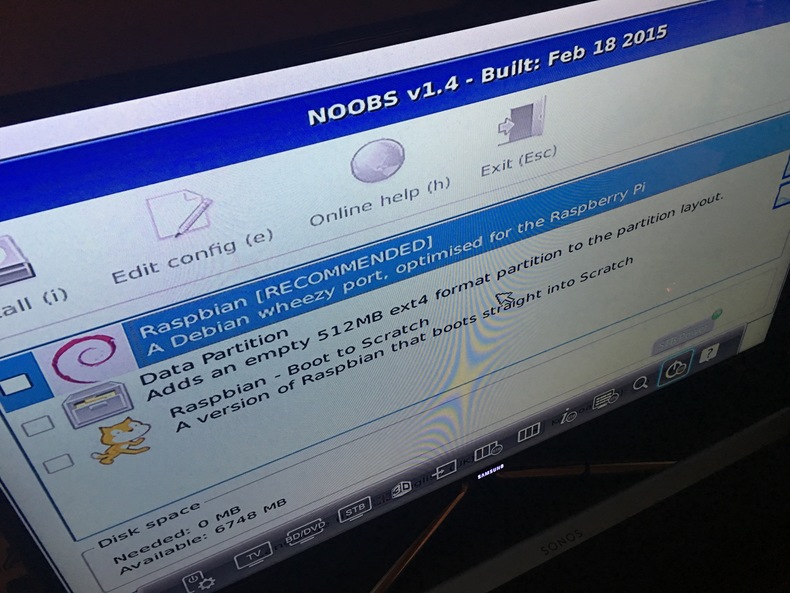
We appear to have noobs not raspbian.
Time to install the os via sd card reader since I can’t find a keyboard and mouse.
I wanted to run rapbian so off to the google to find the download of the OS Image.
Again back to the google and find an install guide
Since I am running el captain my disk utility looked a bit different but after running “First Aid” I was able to see similar details in the guide.
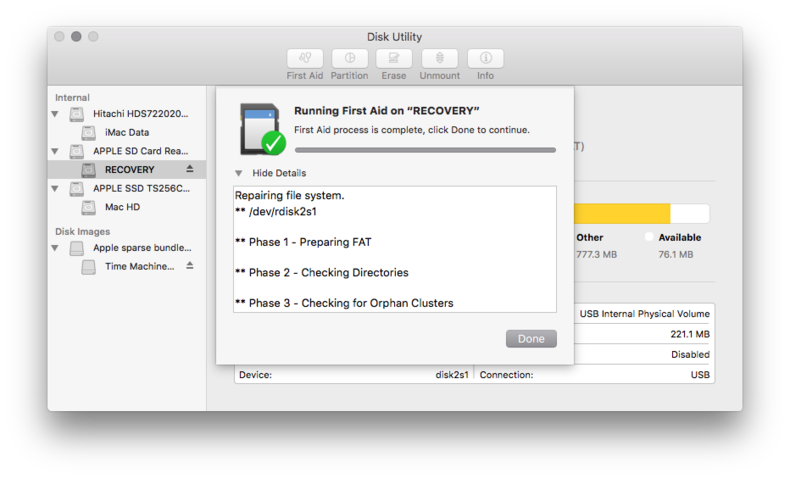
Filling in the command line with the downloaded img and disk details
sudo dd bs=1m if=2015-11-21-raspbian-jessie.img of=/dev/disk2
…waiting…
This process can take a long time if you want to see some progress type ctrl-t
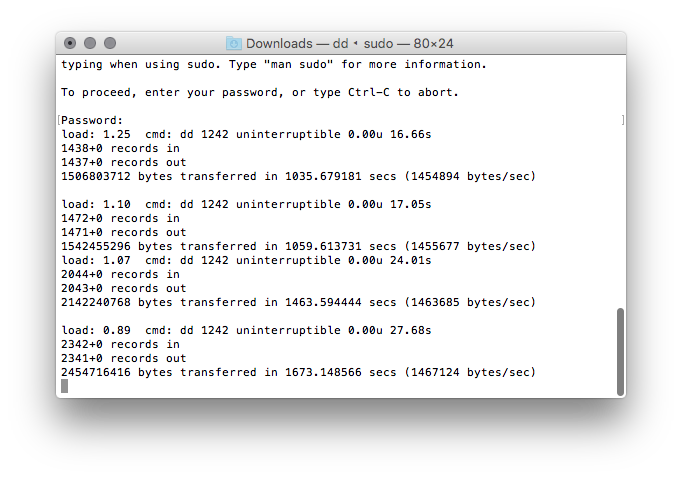
Queue sponge bob one hour later, it finished and we have the partitions setup
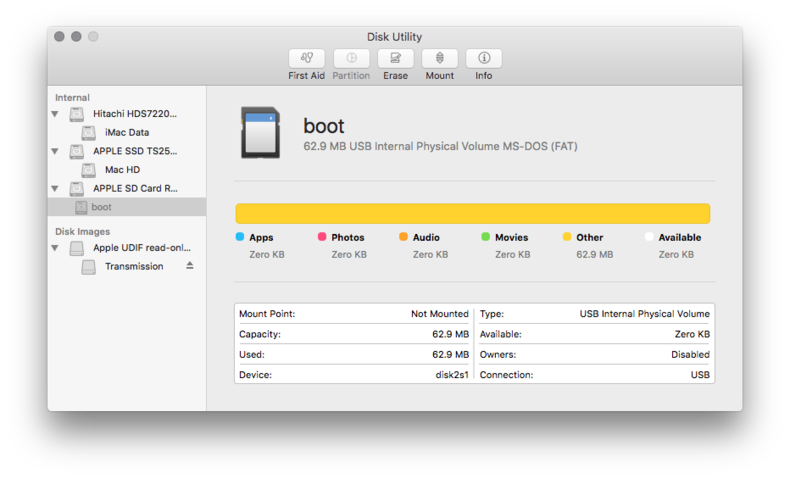
Time to eject and I hope this all works.
#Success
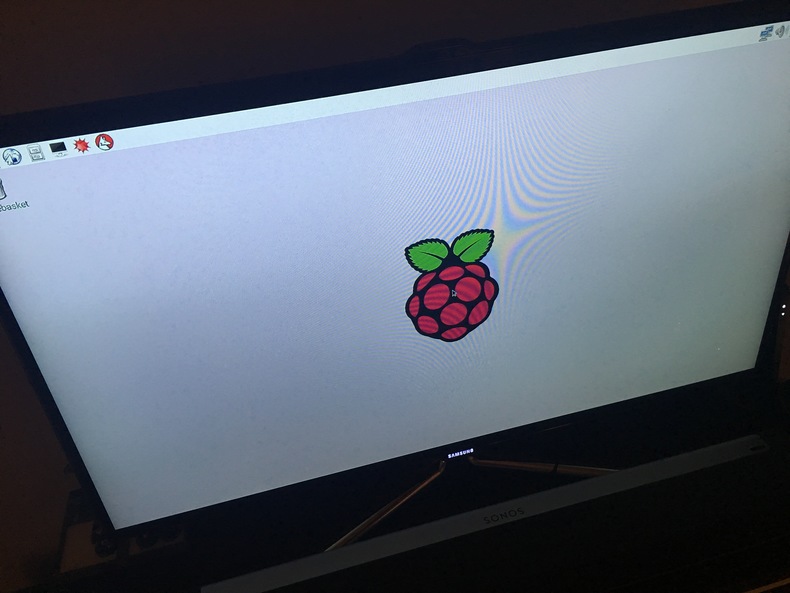
We have something running on the raspberry pi!
Now back to the nmap command to see if we can ssh into the device.
nmap -p 22 --open -sV 192.168.1.*
Nmap scan report for raspberrypi (xxx.xxx.xxx.xxx)
We have a host!
Now to ssh into the device
ssh pi@xxx.xxx.xxx.xxx (where xxx is the ip from the nmap output)
Answer yes to the prompt and enter in the default password of raspberry
Debian GNU/Linux comes with ABSOLUTELY NO WARRANTY, to the extent
permitted by applicable law.
Last login: Sat Nov 21 21:35:33 2015
pi@raspberrypi:~ $
#YES!
Now it is time for bed.
Mental Recap
- used the
ddcommand to transfer data from an img to an sd card - boot up the rasbian os
- run
nmapto find the ip address of the raspberrypi sshinto the device