I always love to install new operating systems and always update my software to the latest and greatest version. I do do this a bit cavalier at times but have been lucky (so far). Since I am a strict mac user doing this was super easy as I was able to spin up a new VM in parallels without any trouble at all.
Since I love guides and pictures here is the install in Pictures!
Download the ISO I signed up for the Windows Insider program and downloaded the ISO.
Read the knowledge base article
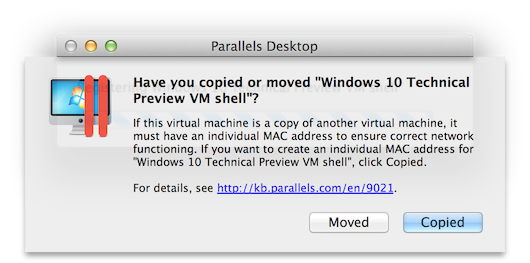
Parallels has a handy article on how to install Windows 10 inside of parallels for mac. Once downloaded and extracted choose copied
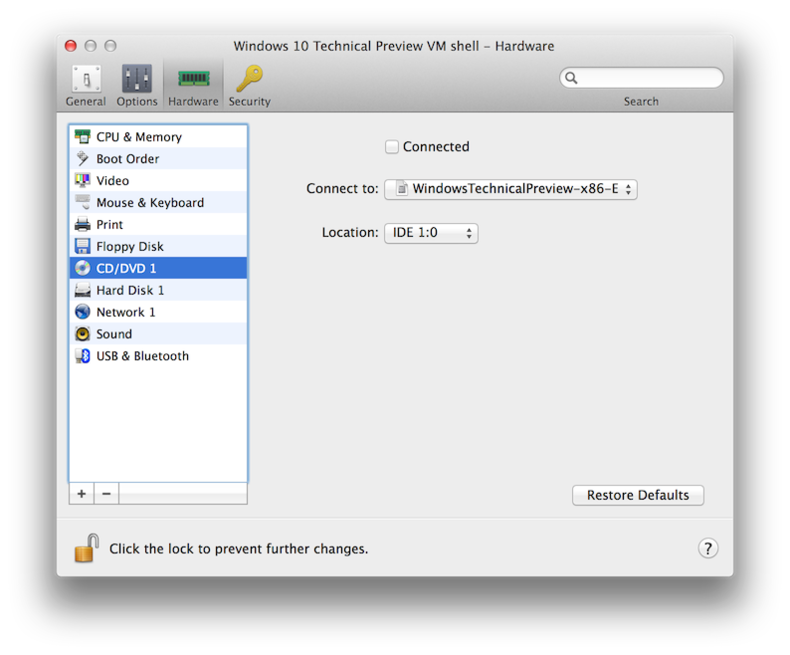
Connect the ISO
Configure your VM and connect the downloaded ISO to your VM.
First Boot
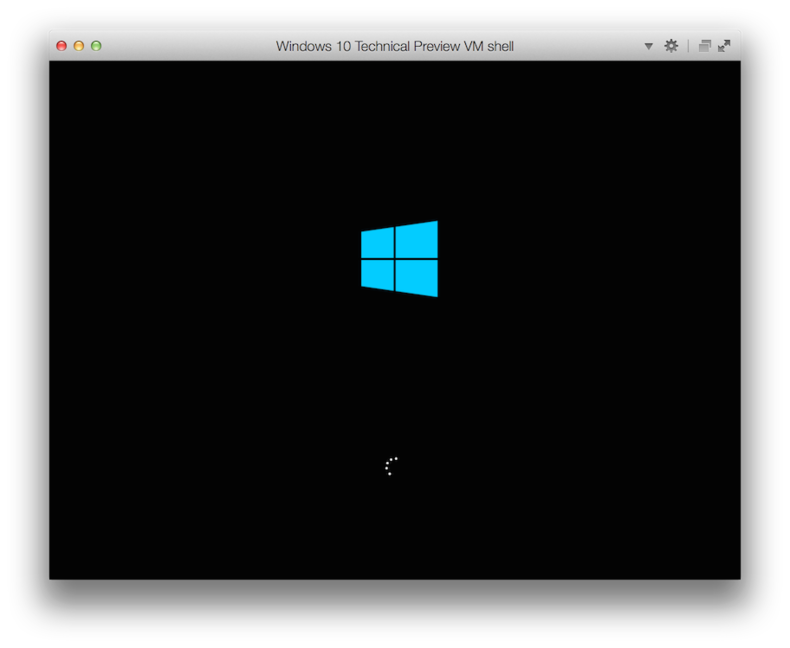
Windows 10 Startup
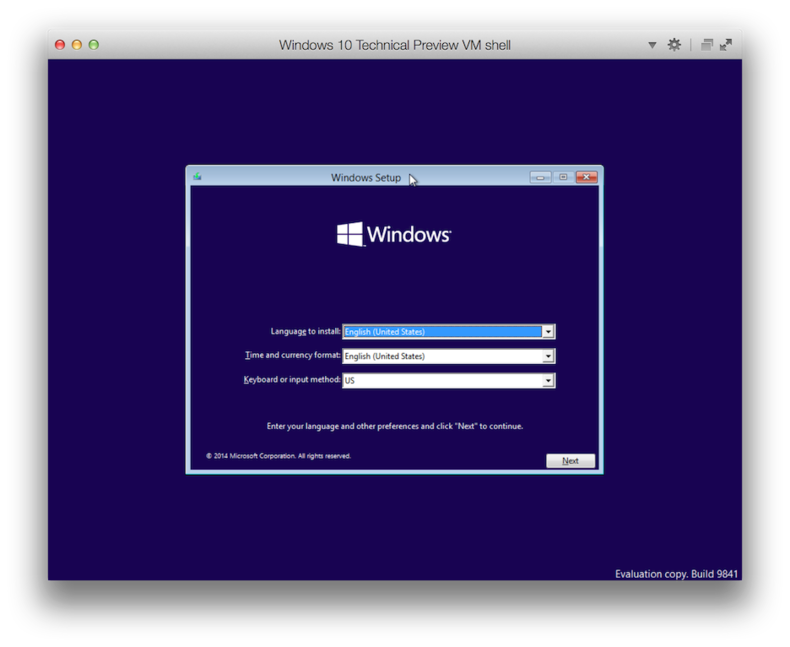
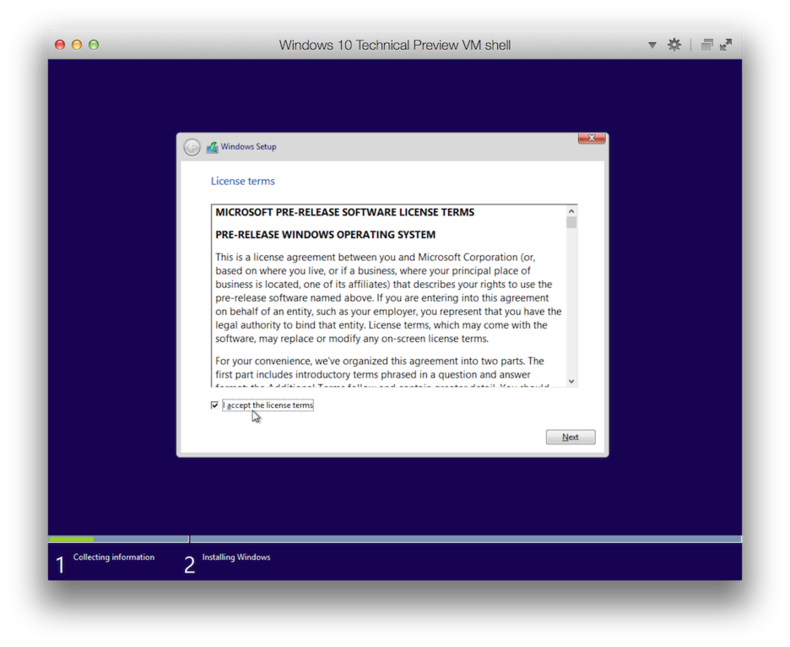
Confirm the terms
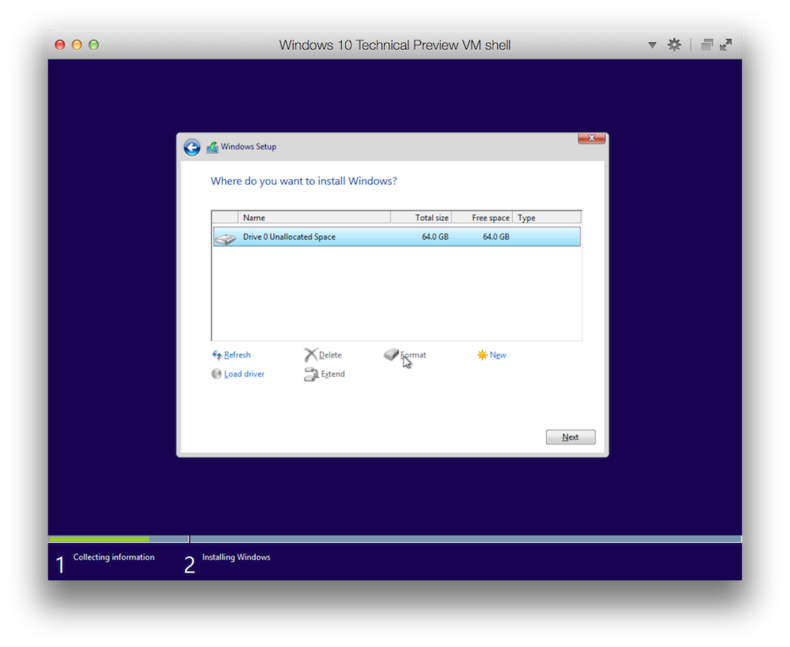
Select the drive
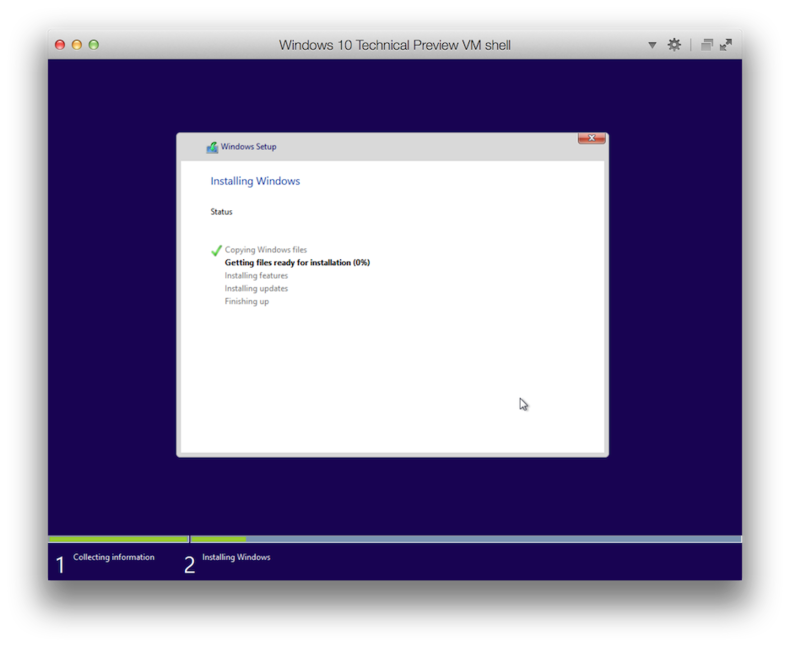
Installing…
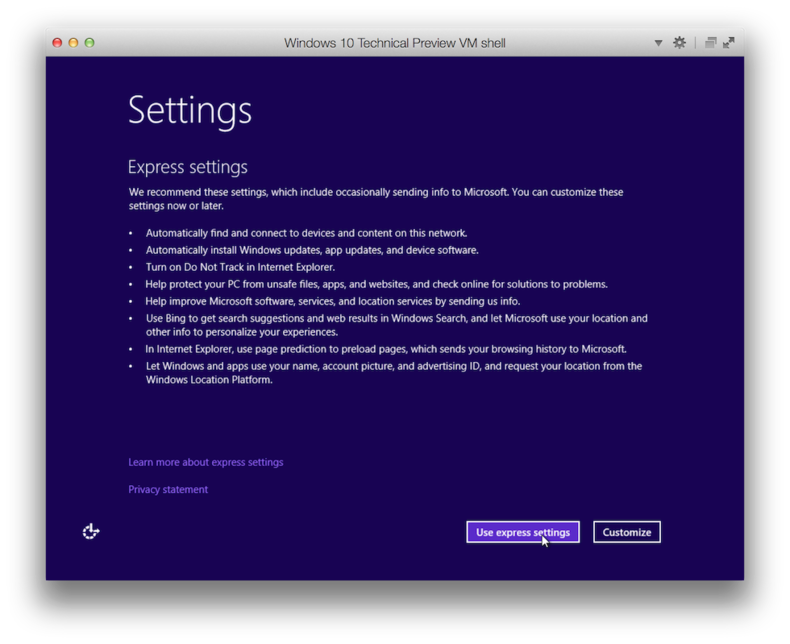
Express Setup
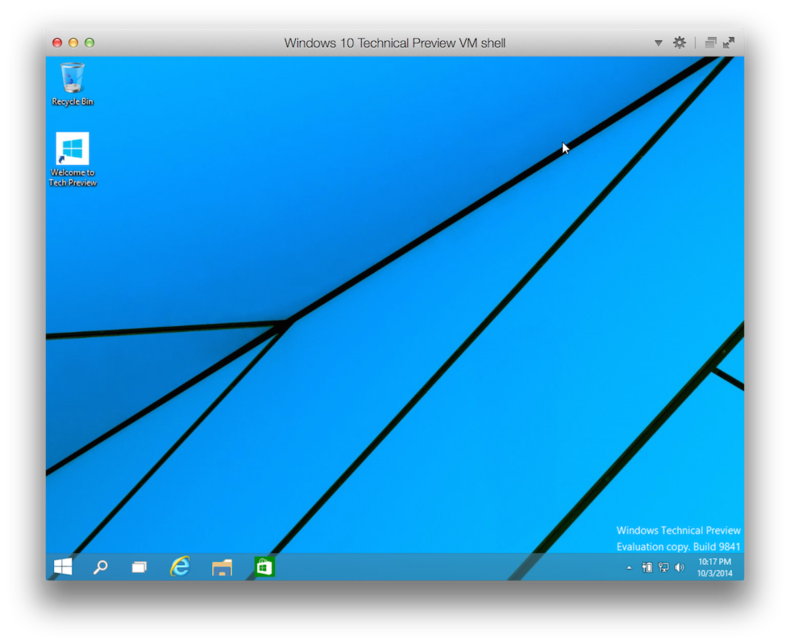
First time seeing the desktop
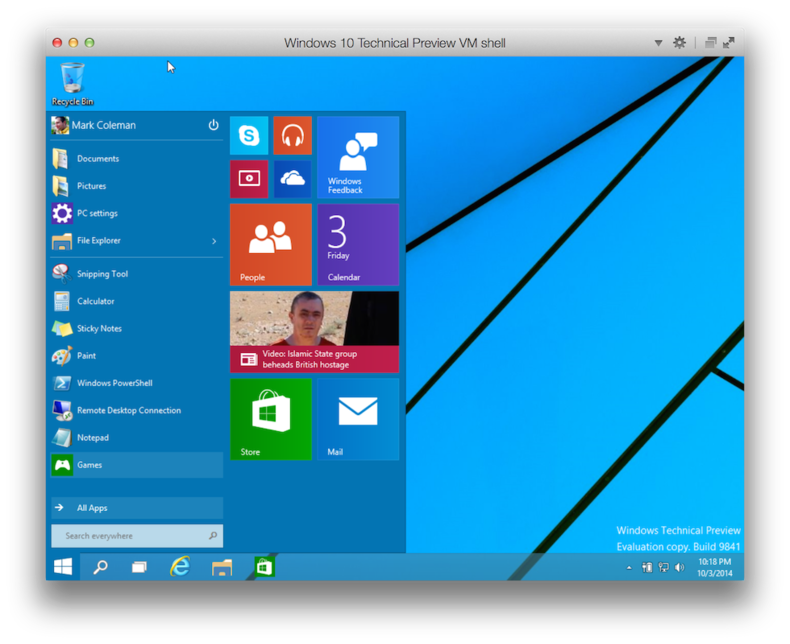
The Start Menu is back
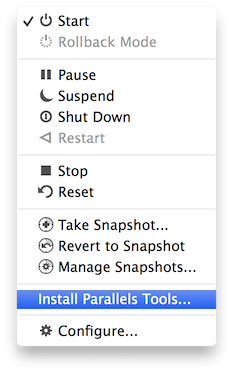
Install Tools
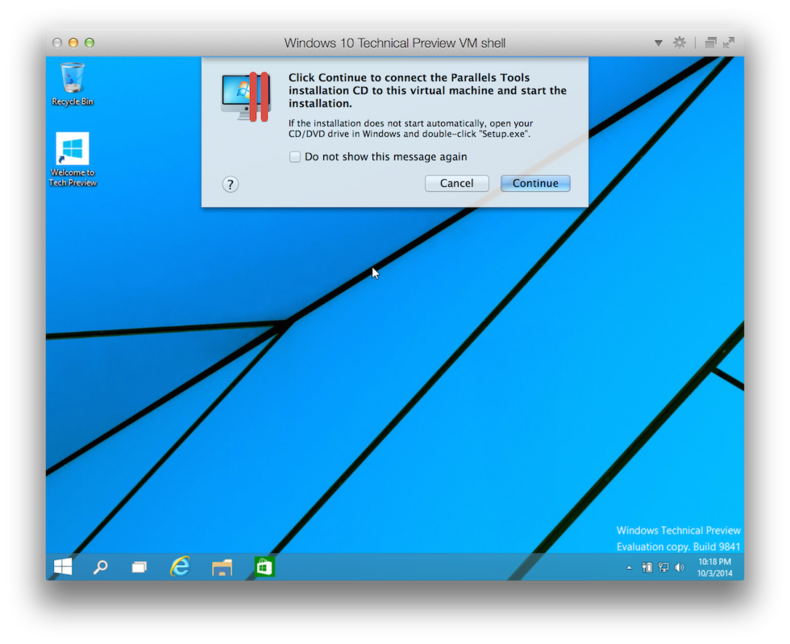
Allow Prompt
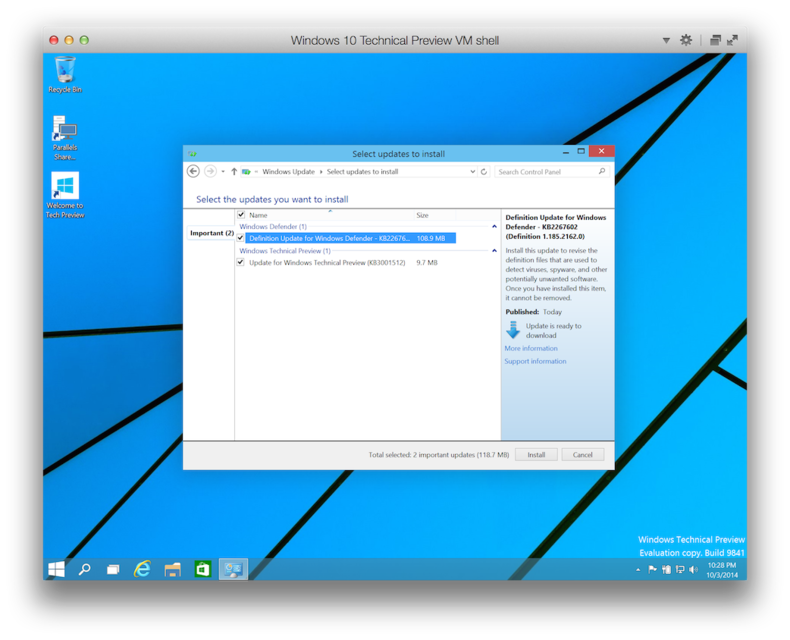
Run Windows Update
We now have Windows 10 installed in a Parallels VM, have fun!