Recently I began doing some preliminary research on Octopus Deploy for automated deployment of our .net application. With the nature of deployment I thought it might be interesting to set up an environment with a few servers to see how this all works together. Because of this idea I don’t feel like doing this myself, maybe I can leverage azure and some of my monthly credits to get up and running quickly.
I read about using gallery images to setup a windows server, how about we try this out and see how easy or hard it ends up being.
Steps involved for me your milage my vary ###Log into the portal First off you need to log into the azure portal.
###Click Virtual Machines I navigated to the virtual machines icon on the left and click on the create virtual machines link as I had no virtual machines setup prior.
###Create New VM
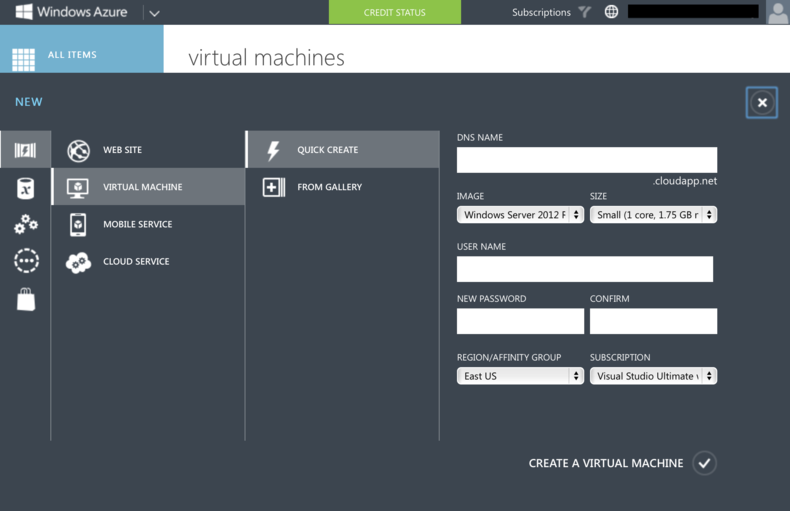 A create new VM form showed up from the bottom. Since I wanted to create something from the gallery I decided to click the link “From Gallery”
###Selecting Microsoft Windows Server
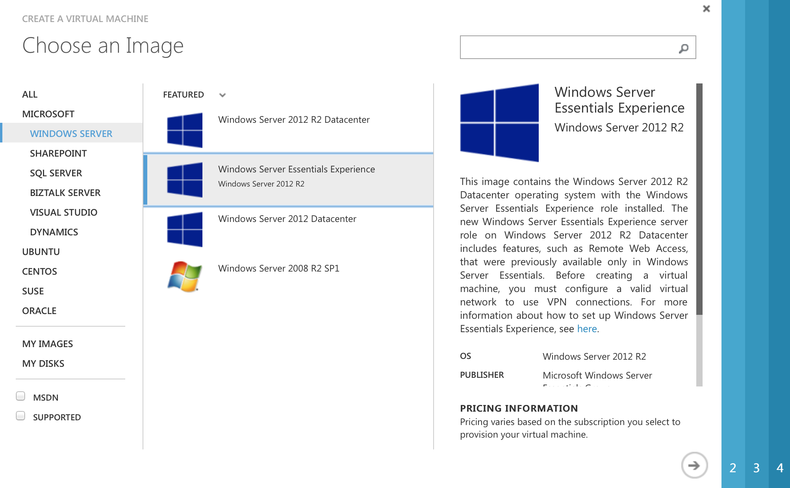 Now since I wanted to create a Windows Server I selected the Windows Server Essentials image.
###Server Name and User
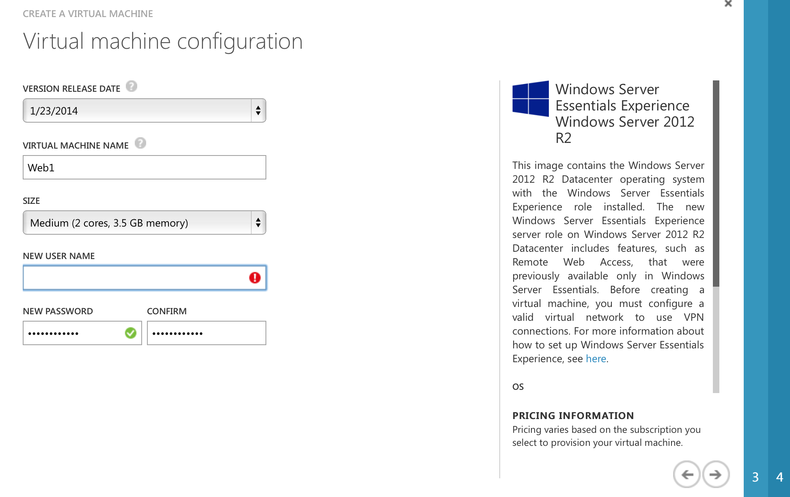 The next screen I saw was some initial configuration for the Vm including server name and the first user in the system.
###Cloud Service, region, storage, etc
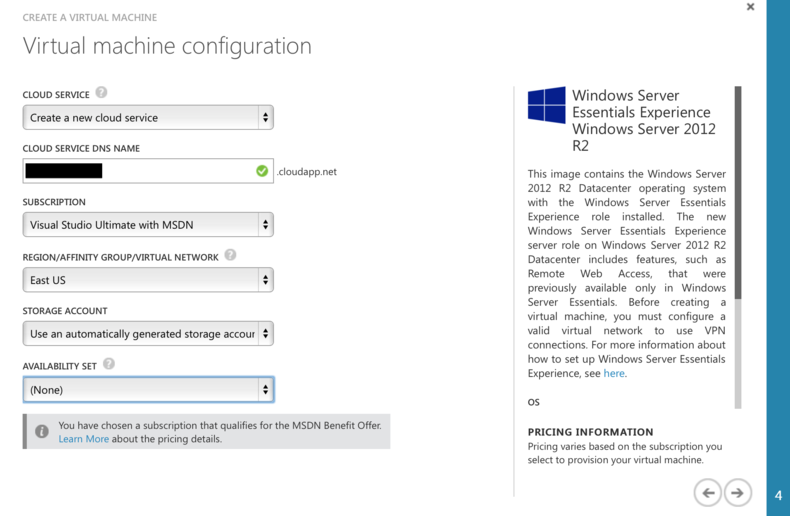 This next screen talks about cloud service, region, storage, and a few other options. I decided to leave these at the default as I need to do a bit more research on what each one means.
###Setup Ports
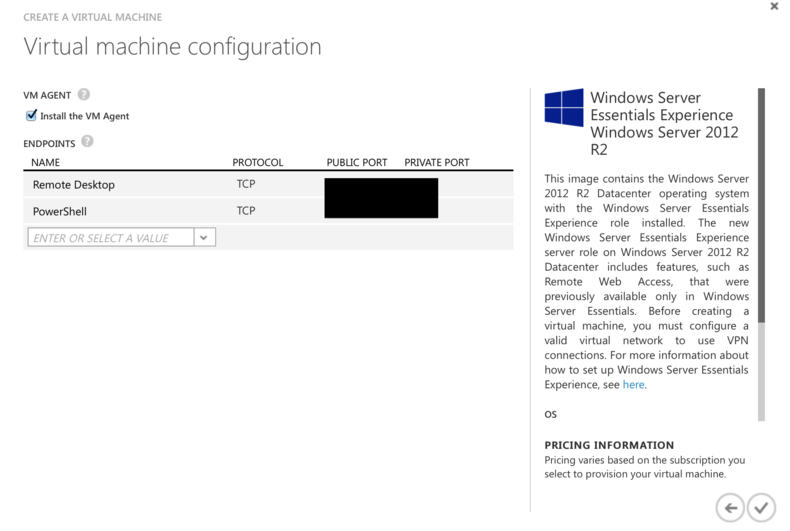 Next you can configure which endpoints are exposed on this server. This allows you to RDP in, power shell, open up HTTP, etc. Once again I left the default configuration and clicked the ✓.
###Creating VM
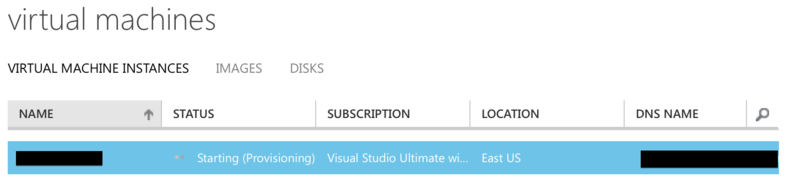 After a few seconds the VM started the provisioning process. Since I didn’t have a cloud service setup it created that first and then the actual virtual machine. After a few minutes everything was created and we were running.
###It is running!
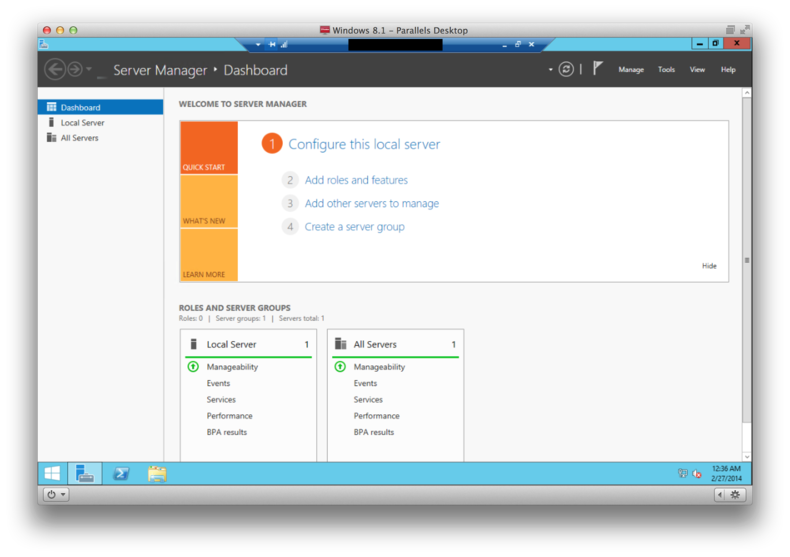 After the Vm was created I clicked on the VM and then the connect icon on the bottom task bar. This downloaded an rdp file that allows you to remotely connect to your azure vm.
I was unable to RDP into the azure vm from my mac as I found from this answer. Once I connected from Windows 8.1 I had no problems.
After the Vm was created I clicked on the VM and then the connect icon on the bottom task bar. This downloaded an rdp file that allows you to remotely connect to your azure vm.
I was unable to RDP into the azure vm from my mac as I found from this answer. Once I connected from Windows 8.1 I had no problems.
#Conclusion Well after a few minutes and some basic configuration I had a fresh new VM setup and running waiting for my input. It was easy!